
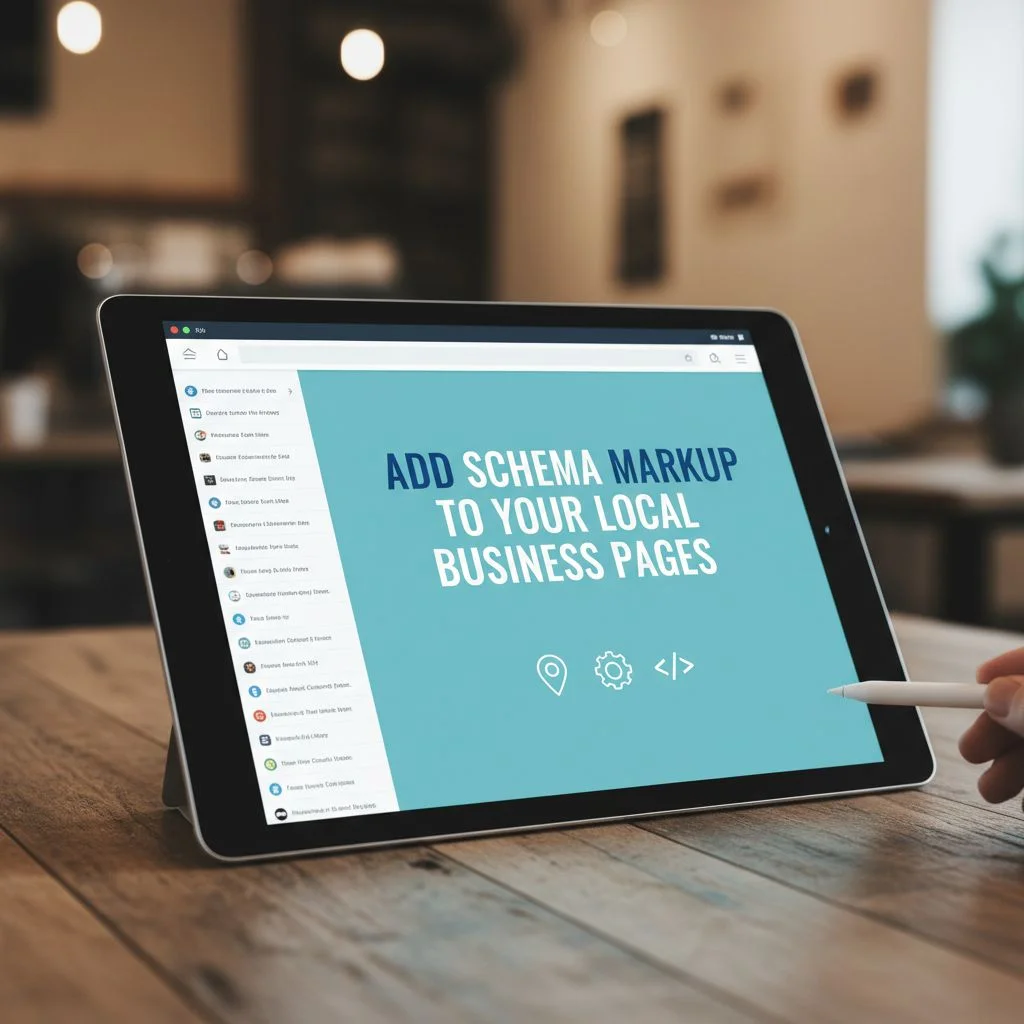
Voice assistants need structured data to answer questions out loud. Schema markup gives them exactly that: clean, machine-readable facts about your business – name, address, hours, phone number, location coordinates.
When someone asks “Where’s the nearest coffee shop?” or “What time does this salon close?”, Google, Siri, and Alexa pull from schema-marked pages first. Without it, they guess. With it, they quote you directly.
What is Local Business Schema, and why does it matter for voice search?
Local Business Schema is a specific type of structured data (code) added to your website that helps search engines deeply understand your brick-and-mortar business. Because voice assistants (like Siri, Alexa, and Google Assistant) rely on direct, highly accurate answers to fulfill conversational queries like “Where is the closest bakery open now?”, having clear Schema provides the precise data they need to recommend your business
How does Rank Math help me show up in voice search results?
Rank Math automates the technical heavy lifting. When you enable the Local SEO module, Rank Math generates clean, error-free JSON-LD code containing your business name, exact location, phone number, and operating hours. Furthermore, if you use Rank Math PRO, features like Speakable Schema explicitly tell search engines which paragraphs on your page are best suited to be read aloud by voice assistants.
How Schema Feeds Voice Answers
Voice assistants don’t read your website like a human does. They scan for structured data they can trust and repeat.
LocalBusiness schema tells them who you are, where you are, and what you do. FAQPage schema gives them short answers to common questions – ready to speak out loud. Review schema lets them confidently say “This place has 4.8 stars.”
Each schema type solves a specific voice query:
–LocalBusiness / Organization – Name, address, phone, URL, geo coordinates, and category. Powers “find me a [business type] near me” queries.
–OpeningHoursSpecification – Explicit open and close times. Answers “What time do you open today?”
–FAQPage – Short Q&A pairs about services, pricing, availability. Answers “Does this place offer same-day service?”
–Review / Rating – Star ratings and review snippets. Answers “Is this place good?”
Stack these together and voice assistants get a complete, trustworthy profile of your business.
How to Set It Up
Three steps:
1. Add JSON-LD schema to your homepage, contact page, and each location page.
2. Validate your markup with Google’s Rich Results Test and Schema.org’s validator.
3. Match your details everywhere – your site, Google Business Profile, and local directories should show the same name, address, phone, and hours.
Consistency matters. When assistants see the same data across multiple sources, they trust it more and repeat it more often.
The Bottom Line
Schema markup is the layer between your business data and voice assistants. Add it, and your details get spoken to customers who ask. Skip it, and assistants pull from third-party sources that may be wrong, outdated, or about your competitor.
Can I add Local Business Schema to individual pages?
Yes. While global settings apply to your overall site, you can easily customize Schema on a page-by-page basis. Open any post or page in the WordPress block editor, click the Rank Math SEO score icon, head to the Schema tab, and open the Schema Generator. From there, you can add or fine-tune specific local details tailored to that exact page or location.
Why is consistency in my NAP data so critical?
NAP stands for Name, Address, and Phone number. Voice assistants cross-reference information across your website, your Google Business Profile, Apple Maps, and local directories. If your address is spelled differently on your website’s Schema than it is on your Google profile, search engines face a “discrepancy signal.” This drops their confidence in your data, making them less likely to fetch your business for a voice search result.
How can I test if my Rank Math Schema is working properly?
Never guess if your code is working. Once you’ve configured your settings and updated your page, copy your page URL and drop it into Google’s Rich Results Test or the validator at Schema.org. These free tools will scan your page and flag any red “Errors” or orange “Warnings” so you can fix them immediately within your Rank Math settings.
Author

AI Native: The Mandate to Transform Your Company
$15.69 (as of November 6, 2026 19:05 GMT +00:00 – More infoProduct prices and availability are accurate as of the date/time indicated and are subject to change. Any price and availability information displayed on [relevant Amazon Site(s), as applicable] at the time of purchase will apply to the purchase of this product.)
The Everything Code: Seizing the Opportunities at The End of Economic History and The Dawn of the Exponential Age
$19.95 (as of November 6, 2026 19:05 GMT +00:00 – More infoProduct prices and availability are accurate as of the date/time indicated and are subject to change. Any price and availability information displayed on [relevant Amazon Site(s), as applicable] at the time of purchase will apply to the purchase of this product.)
The Law of the Sublime
$35.42 (as of November 6, 2026 19:05 GMT +00:00 – More infoProduct prices and availability are accurate as of the date/time indicated and are subject to change. Any price and availability information displayed on [relevant Amazon Site(s), as applicable] at the time of purchase will apply to the purchase of this product.)
Conversation: How to Connect with Anyone & Make Every Interaction Count
$17.29 (as of November 6, 2026 19:05 GMT +00:00 – More infoProduct prices and availability are accurate as of the date/time indicated and are subject to change. Any price and availability information displayed on [relevant Amazon Site(s), as applicable] at the time of purchase will apply to the purchase of this product.)


Leave a Reply